Improving your computer performance
Upgrading your computer hardware
If you've worked through all the typical things to clean up your computer, such as using CCleaner, making sure your system is free of spyware and other things with Malwarebytes, even used something like Defraggler to optimize your spinning hard disk for PC's, or OnyX for Mac to make sure things are as optimized as you can make them, the next step to consider are what hardware upgrades you can do to extend the life of your computer, increasing your performance.
It's been my experience that there are two upgrades you can do to get the best 'bang for your buck' when it comes to relatively modern computers. First is RAM. RAM is the work space your computer uses to run applications. Usually it's the least expensive upgrade you can do.
The second upgrade you can do is trade up from a spinning hard disk to a Solid State Drive. This is a hard drive that has no moving parts, but is based on faster, non-volatile memory technology, the same sort that's used in USB drives.
There are several ways to go about figuring out what you need, but I'm going to recommend using Crucial to learn what sort of options you might have available. There may be better deals to have, but it's been my experience that Crucial does a decent job offering things at a fair price. If you want to search out other options, I would encourage you to do so. I'll list some of my recommendations at the end of this article.
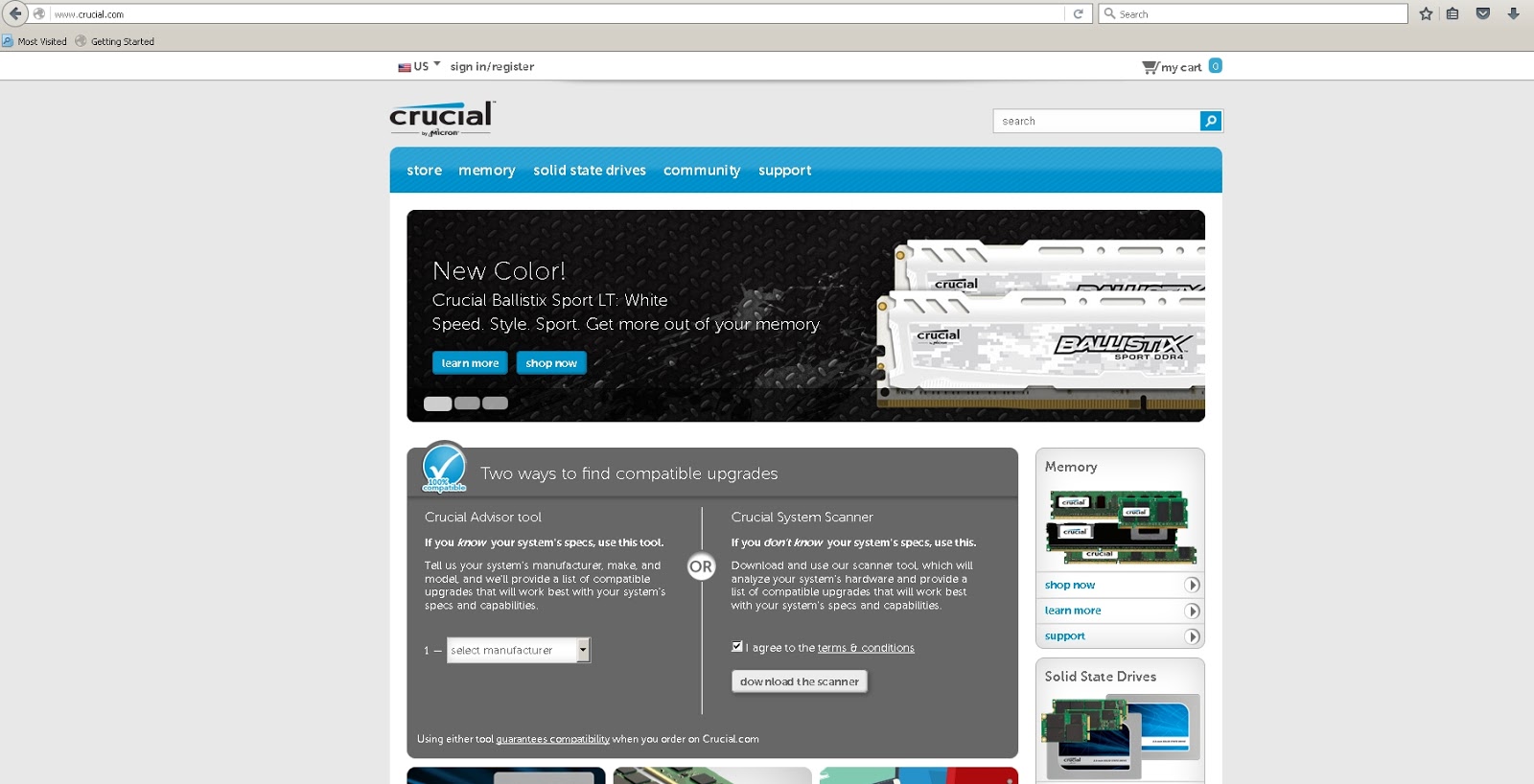
If you'll point your browser at the Crucial website, you'll find on the front page a section called "Crucial System Scanner." Check the box and click the button below it. This will download a CrucialScan application, which you'll want to run.

Running the application will open a new web page for you on the Crucial website. This page will be tailored specifically for the computer (PC or Mac) that you run it on. As you can see in my example, it shows you how many memory slots you have in your computer, and what's currently in them. Additionally, it tells you what the maximum amount of memory you can have in your system is. To the right, you can simply purchase the RAM upgrade you want to have shipped to you.
You can also see below the memory your system has, some details about your hard drive. In the lower left side of the window, they show you options for upgrading your hard disk to a Solid State Drive (SSD) for increased speed and performance. I'd recommend a drive at least the same size as yours, or the next size up. (The rule of thumb for storage is that you'll find and keep more data if you have room for it on your drive.)

As promised, some of the SSD recommendations I have outside of those offered by Crucial. I'm a fan of the Samsung EVO and Samsung PRO lines, currently the 850.
The EVO line is meant for consumers, and has a 3 year warranty. At the time of this writing, I see that the 500GB Samsung EVO 850 is pricing at about $150.
The PRO line is meant for professionals, and comes with a 10 year warranty. Again, at the time of this writing I see that the 512GB Samsun PRO 850 is pricing at about $220.
There is a new Samsung EVO line, the 750, that's meant to be a lower, entry-level with a lower price and size options. Tom's Hardware gives a review and some details about it, along with some of the average price range.